Python 데이터 분석
Python 데이터분석 기초 17 - Matplotlib(차트 호출)
코딩탕탕
2022. 11. 2. 11:43
Matplotlib
http://matplotlib.org
플로팅 라이브러리로 matplotlib.pyplot 모듈을 사용하여 그래프 등의 시각화 가능.
그래프 종류 : line, scatter, contour(등고선), surface, bar, histogram, box, ...
Figure
모든 그림은 Figure라 부르는 matplotlib.figure.Figure 클래스 객체에 포함.
내부 plot이 아닌 경우에는 Figure는 하나의 아이디 숫자와 window를 갖는다.
figure()를 명시적으로 적으면 여러 개의 윈도우를 동시에 띄우게 된다.
# Matplotlib
# - http://matplotlib.org
# - 플로팅 라이브러리로 matplotlib.pyplot 모듈을 사용하여 그래프 등의 시각화 가능.
# - 그래프 종류 : line, scatter, contour(등고선), surface, bar, histogram, box, ...
# - Figure
# 모든 그림은 Figure라 부르는 matplotlib.figure.Figure 클래스 객체에 포함.
# 내부 plot이 아닌 경우에는 Figure는 하나의 아이디 숫자와 window를 갖는다.
# figure()를 명시적으로 적으면 여러 개의 윈도우를 동시에 띄우게 된다.

import numpy as np
import matplotlib.pyplot as plt
plt.rc('font', family = 'malgun gothic') # 한글 패치
plt.rcParams['axes.unicode_minus'] = False # 음수 나오게 패치

# x = ['서울', '수원', '인천'] # set type은 불가(순서가 없음)
# y = [5, 3, 7]
# plt.xlim([-2, 3]) # x 축 최소값 -1 부터 3
# plt.ylim(0, 10)   # y 축 최소값 0 부터 10
# plt.plot(x,y) # x, y축에 값을 넣는다.
# plt.yticks(list(range(-3, 11, 3)))
# plt.show()    # 차트 호출

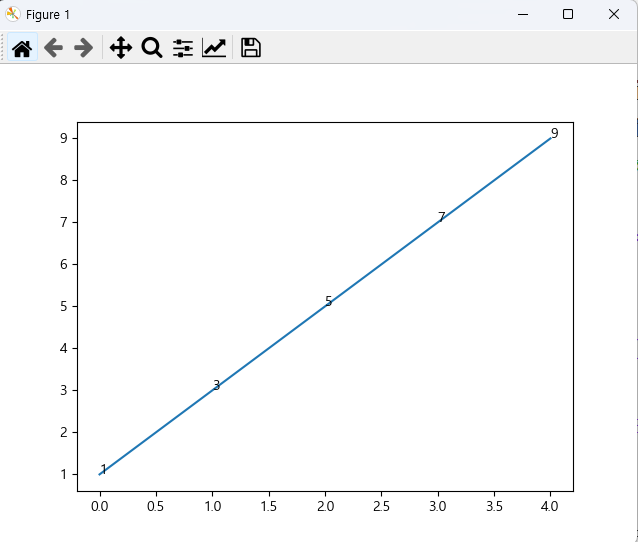
# data = np.arange(1, 11, 2)
# print(data) # 데이터를 한 가지만 넣으면 y축으로 넣어진다.
# plt.plot(data)
# x = [0, 1, 2, 3, 4]
# for a, b in zip(x, data):
#     # print(a, b)
#     plt.text(a, b, str(b))
#
# plt.show()

# x = np.arange(10)
# y = np.sin(x)
# print(x, y)
# plt.plot(x, y, 'go--', linewidth = 2, markersize = 10)
# plt.show()

# print('hold : 복수의 차트를 하나의 영역에 겹쳐서 출력')
# x = np.arange(0, np.pi * 3, 0.1)
# y_sin = np.sin(x)
# y_cos = np.cos(x)
#
# plt.plot(x, y_sin, 'r')
# plt.plot(x, y_cos, 'b')
# plt.title('사인 & 코사인')
# plt.legend(['사인', '코사인'])
# plt.show()
#
# print()
# # subplot : Figure를 여러 개로 나눔
# plt.subplot(2, 1, 1)
# plt.plot(x, y_sin, 'r')
# plt.subplot(2, 1, 2)
# plt.plot(x, y_cos, 'b')
# plt.show()

irum = 'a', 'b', 'c', 'd', 'e'
kor = [80, 50, 70, 70, 90]
eng = [60, 70, 80, 70, 60]
plt.plot(irum, kor, 'ro-') # style 변경
plt.plot(irum, eng, 'gs--') # style 변경
plt.ylim([0, 100])
plt.legend(['국어', '영어'], loc = 3) # legend의 위치 설정 가능
plt.grid(True)

fig = plt.gcf() # 이미지를 저장
plt.show()
fig.savefig('차트.png')

from matplotlib.pyplot import imread
img = imread('차트.png')
plt.imshow(img) # 저장한 이미지 불러오기
plt.show()
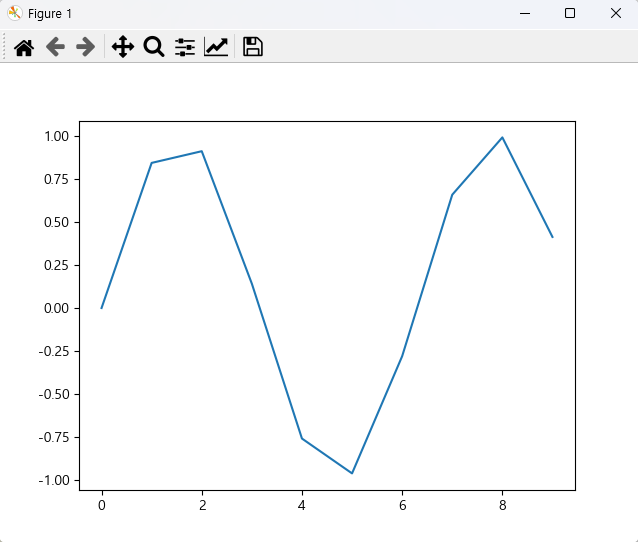

style 변경 가능하다.
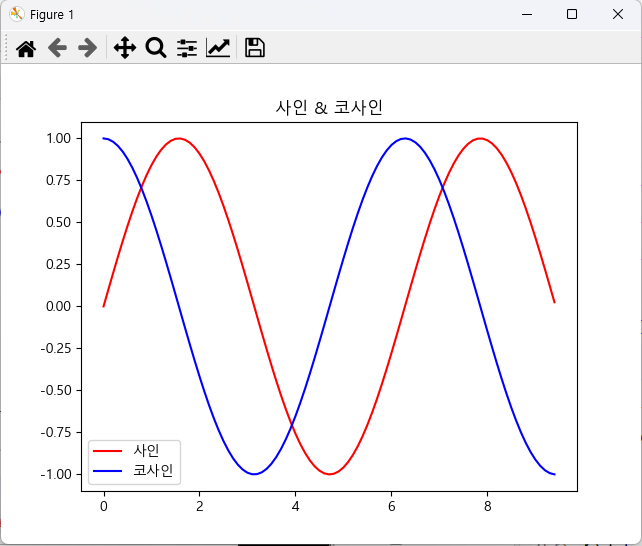
hold : 복수의 차트를 하나의 영역에 겹쳐서 출력
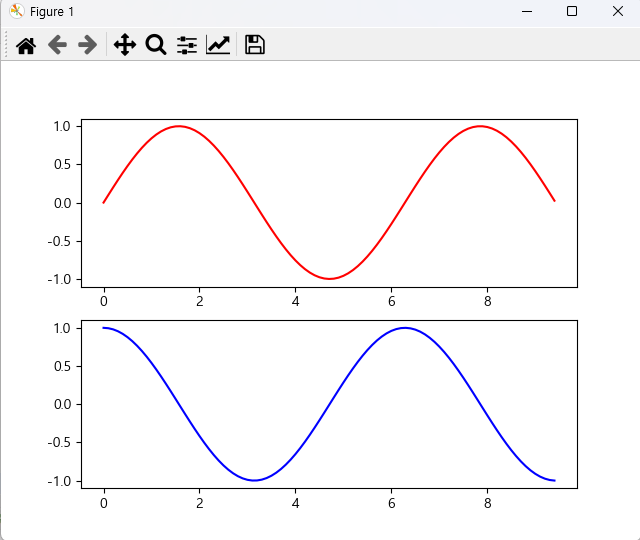
subplot : Figure를 여러 개로 나눔